Greg Siekman

Greg Siekman

Automation & Systems Engineer

Using code and digital tools to automate tasks and make work easier.

Open to opportunities in education technology and beyond.

About

I started my development career inhereting a web extension that automated tasks in Canvas LMS. Working on that laid the ground work for how I understand the capacity of software to make work easier. I continue to carry that ethos in my work. Whether I’m setting up auto-deploy practices or implementing documentation-as-code, I try to limit the amount of tedious work involved in the work getting done.

I fundamentally believe technology should be centered on user value— a model that, by-and-large, tech companies have turned away from.

Tools

TypeScriptGitHub ActionsPythonREST APIWeb Extension DevDocumentation

Experiences

2025

Solution Developer · Unity Environmental University

Expanded on an internal browser extension and suite of automation tools used to manage 130+ courses, focusing on eliminating manual friction for educators and staff.

  • Extended TypeScript and React automation pipeline to automate boilerplate content and settings across multiple academic levels
  • Implemented robust CI/CD pipeline, replacing manual publication scripts with automated testing, PR-based preview builds, and GPO-based device updates.
  • Built one-click workflow tools that bridge internal data sources (Canvas, Salesforce, and Trello)
  • Led the rollout of a version-controlled "documentation-as-code" platform to keep documentation with the code
  • Developed data-driven dashboards to surface insights from ticket feedback and course logs, shifting curriculum design toward evidence-based improvements
  • TypeScript
  • React
  • Python
  • Node
  • Zustand

2023

Learning Technology Support Specialist · Unity Environmental University

As inaugural LTSS, set procudes for ticket handling, video production, LTI tool audits, and Canvas maintenance.

  • Acted as the primary technical authority for Canvas LMS, resolving Tier 1 & 2 issues regarding course design, rubrics, and platform settings
  • Defined and implemented protocols for ticket lifecycle management, LTI tool compliance audits, and academic video production
  • Collaborated with learning design teams to translate complex technical requirements into actionable, user-friendly solutions
  • Served as the bridge between end-user frustrations and technical implementation, identifying recurring pain points that informed course development
  • Canvas LMS
  • Salesforce
  • LTI
  • HTML/CSS

2022

Technology Integrator/IT Support Specialist · MSAD #58

Provided hands-on technical support and infrastructure maintenance for a K-12 school district, ensuring reliable hardware and software environments for faculty and students.

  • Executed large-scale summer device rollout and fleet maintenance across four campuses, maintaining operational standards through complex logistical challenges
  • Resolved Tier 1 support tickets, covering end-user identity management, software troubleshooting, and classroom A/V issues
  • Implemented physical network infrastructure upgrades, including the installation and cabling of security cameras and wireless access points across the district
  • Evaluated emerging educational technology tools to ensure alignment with K-12 curriculum and district-wide security standards
  • Ticketing
  • Jamf
  • macOS
  • Clever

Blog

Making an Ops Tool with Electron

2026-07-28

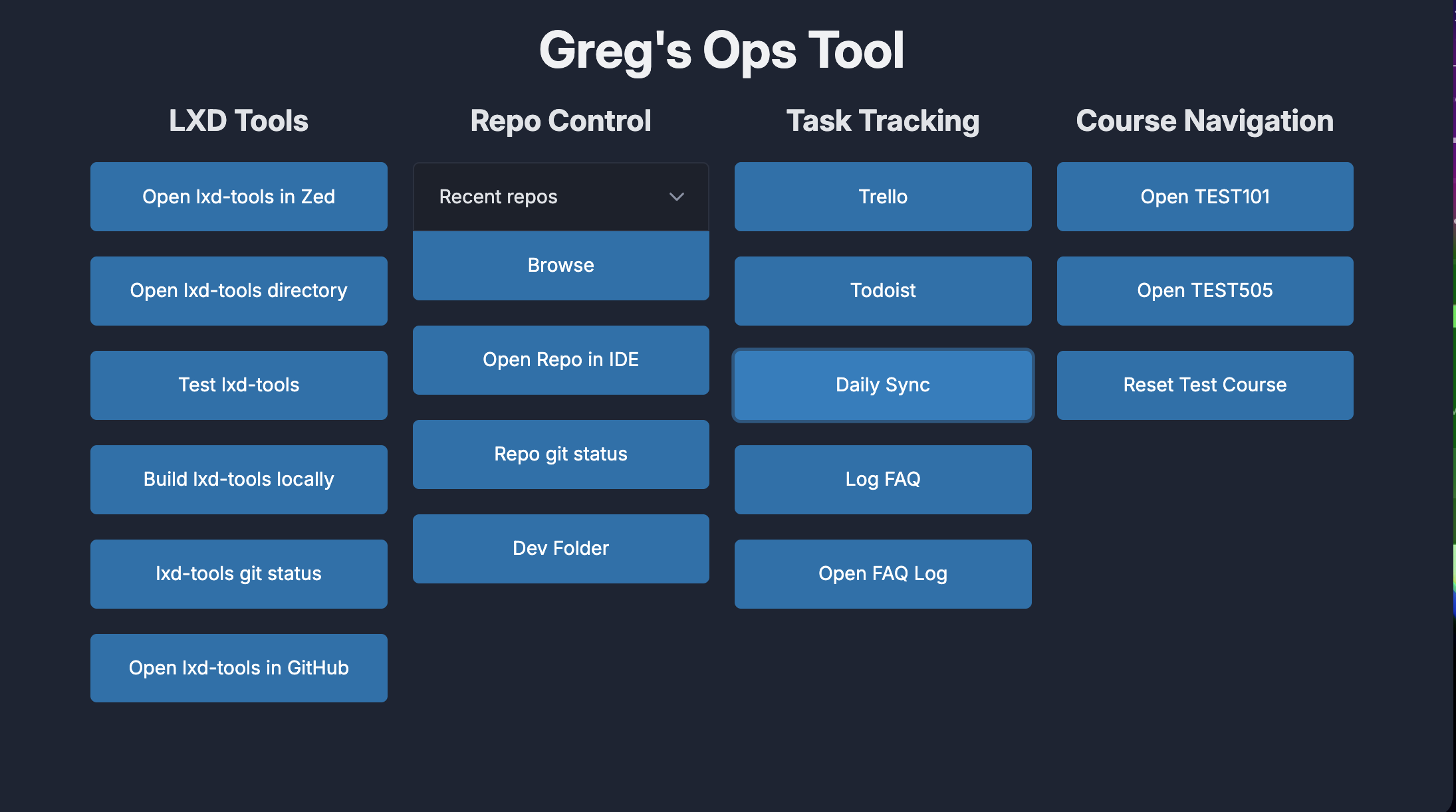
A screenshot of an Electron application titled "Greg's Ops Tool" consisting of four columns of buttons.

In a recent post, I mentioned an ops tool I built. The intention behind this tool was to create a dashboard of buttons to run repeatable processes in my day-to-day work. It was a new kind of project for me, as I'd never worked on something designed to be a standalone app; most of the stuff I create with a GUI runs in a browser. Because of that experience, I knew I wanted something that would turn web technologies into a desktop application. I originally started working on the project in Tauri, the shiniest of these tools, but once I recognized the need to move some of my system command logic into Rust, I decided it was a little too heavy a lift for an ops tool. I made the transition to building this in Electron, taking on the increased package size as a trade-off for the ability to work in a language I already knew and could ship quicker. The tool is broken down into four columns: LXD Tools(the web extension I do most of my work on at my job), Repo Control, Task Tracking, and Course Navigation. There's overlap between LXD Tools and Repo Control, like opening in my IDE of choice(currently Zed) and running git status on the repo. Most of these buttons are relying on system commands to do what they are doing. In Task Tracking, I have buttons to open my team's Trello board and my personal Todoist, then I have Daily Sync and Log FAQ. In Course Navigation, I have buttons to open a few of my commonly used test courses, and a button to open a Test Course reset utility(which was the inspiration for the test course reset tool I talked about here.) My three favorite features of this are the Daily Sync, Log FAQ, and Reset Test Course buttons. Since I have already talked about the standalone version of test course reset, I'm going to focus on the other two buttons here. The Daily Sync button is designed to make it easier for me to compile a message to our team's group chat in Teams every morning, outlining what got done yesterday and what I plan to do today. This button calls Todoist's API for tasks from my Work project, one time for things that were completed on the last workday (so Monday it looks at Friday) and what is scheduled for today. It then combines the titles of those todo items into two comma-separated lists and pops up a text editor where I have the option to adjust the phrasing in a way that makes sense to people who don't have the same context of the task that I do. Once I've done that, I can hit the "Copy to Clipboard" button and then paste it into a Teams message. This works really well because it saves me the time of having to go to Todoist manually every day and jog my memory on what milestones I hit. The Log FAQ button was built out of dual desires: to correlate questions others come to me for, and to decrease instances of context switching for me. Being at my current job for 3 years in roles as Learning Technology Support and now in a Solution Developer context has given me a spot on our team as someone with a lot of institutional knowledge regarding the technology we use in our courses. As such, people will often reach out with questions regarding Canvas, an LTI integration, or something our extension does. While I never mind answering these questions, since taking on a coding role, those questions can cause some context switching that slows me down. In an effort to address that and increase the bus factor among our team, I've begun logging when I get those questions in a JSON file. I hope, in due time, patterns will emerge about what questions are getting asked, and that can be used to make some form of internal FAQ sheet that will allow people to bypass me and go to that page to answer questions, also serving me in reducing my context-switching time. Logistically, I'm most proud of how this tool saves the information. Once you fill out the form and submit, it adds an entry to a JSON file that lives in Google Drive on the computer. That enables the JSON file to stay synced across multiple computers, without any effort. Working with Electron did pose a few new concepts that I had to learn. I had no experience routing things through preload files or using context bridges; the way Electron needed my buttons bound was not something I had experienced. Those roadblocks aside, it was the right choice to go with Electron for this project, as sticking with Tauri would've meant spending a lot more time learning, which would've been antithetical to this particular project's aims of saving me a little bit of time in my everyday work. If you've looked at the image for this post, you'll notice that it's pretty basic in its styling. That's something I keep in the back of my head as something I would like to address down the line. However, as it stands, this is just a tool for me, and I've really been fine with function over form.

Canvas Test Course Reset Tool

2026-07-23

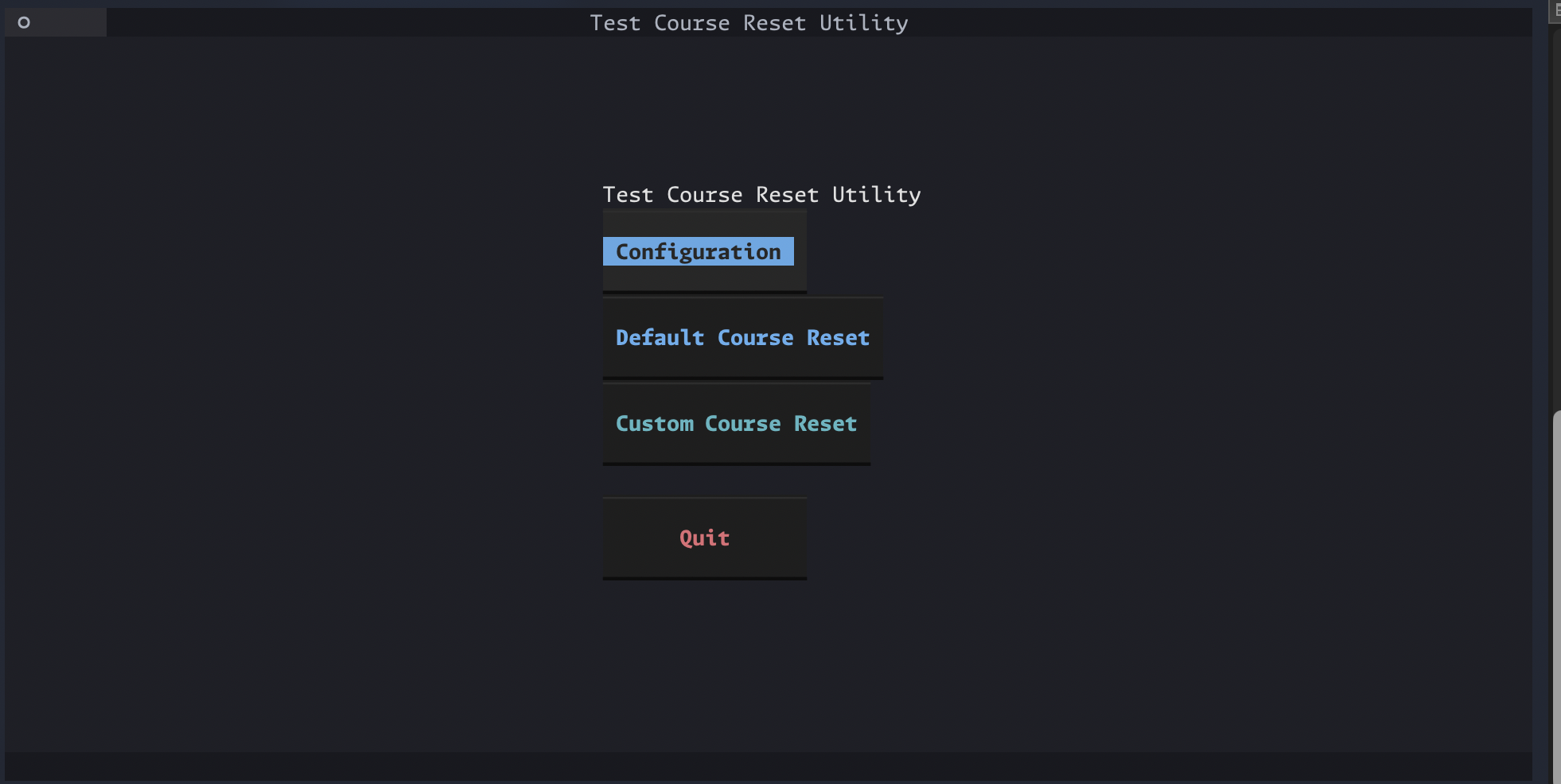
Screenshot of a dark screen showing the Test Course Reset Utility. Buttons for Configuration, Default Course Reset, Custom Course Reset and Quit are stacked in the middle.

In the process of building a personal ops tool to centralize a bunch of common work tasks, I created a process that resets my test courses. After using it for a bit, I realized it was something others might benefit from, so I worked on making a standalone version of it. The original verrsion was built in JavaScript because my ops tool is using Electron to run as an app. But I didn't want a heavy Electron setup for this course reset utility, so I opted to port the functions over to Python and wrap it all in a Textual UI. Needing the UI to at least be moderately pleasant to look at meant that Textual was a little heavier than I originally anticipated, but it came together nonetheless! It's packaged with pyinstaller, so it runs as a standalone file, which I thought was more accessible than needing to run a py file in the terminal. The tool is designed with Canvas admins in mind. When you open it up, you have the following buttons: 'Configuration,' 'Default Course Reset,' 'Custom Course Reset.' The configuration screen prompts you to enter their Canvas subdomain, an access key, the target course ID and the source course ID. Each step gives brief instructions on what you need to give it. subdomain is looking for something like "myschool" in "myschool.instructure.com." If you give it the full url, it will snip it back to just the subdomain. It does basic data validation for the other rows, checking that the access key is long enough to theoretically be an access key, and that the two course IDs are just numbers. Once your configuration is set up, you can user Default Course Reset to reset the course you just set with the other course's materials. The screen will throw a loading indicator while it waits for the response from Canvas. Once the response comes in, you get a confirmation and a command to click the link to go to the content migrations page. The reason that page was chosen as the landing page in Canvas is because content migrations take a while, and that screen has an indicator of the progress of the migration. I contemplated adding a progress bar in the tool, but opted against it as in introduced extra API calls. If you select Custom Course Search, it gives you a chance to select either your default course or a different course for both the target course and the source course. If you choose to use a different course, you can either enter the ID or the course name. The course name will run a search of courses available and give you a list to select from. If you're doing that for the target course and the course you selected doesn't have test in the name, it will ask you to confirm this is the course you wanted. Because this was designed around being a test course resetter, this felt like a reasonable thing to add. You can reset non-test courses if you want, but that's at your own risk. Once you've selected your custom courses, it runs just like Default Course Reset. The coolest thing about this tool is that it handles a weird Canvas quirk gracefully. In Canvas, when you reset a course, you are essentially deleting the old course and creating a new one with it's basic information. The id for the course changes. This can cause problems in automation, because you have to be careful about hard coding the id for a course you plan to reset more than once. This utility takes the returned course information from the API call when you reset the course, and replaces the old target course id in your config with the new one, so your config is always pointed at the newest version of your test course. It had a bug in it at first where it would replace the ID in your config at any time you ran a course reset, which was bad because it would replace your default target course when you ran a custom course search. To handle this, I added a check in the process:  is_custom_course = (    target_course_id is not None    and target_course_id != default_env_course ) if not is_custom_course:   set_key(env_path, "TARGET_COURSE_ID", str(new_course_id))   os.environ["TARGET_COURSE_ID"] = str(new_course_id) Because the code only passes in a target_course_id when you're using the custom reset with a custom target course, this blocks it from overriding your config if you aren't using your default course. It's clever because it checks if you chose the custom course option but still chose your default course. Overall, it's meant to be a utility tool, not necessarily a consumer facing tool. But I hope people will get use out of it. It's certainly rough around the edge and has potential bug that I will continue to iron out as I find them or they get reported to me.

Automating Sprint Summary Reports

2026-07-23

For a few months, I was tasked with leading the sprint process on our team. This including running our debrief and planning meetings, and developing a summary write-up of what happened in the previous sprint for leadership on other teams. Despite leading the meetings, I wasn't always as sharply abreast on the specific details of what people were working on, which made it a bit tough to write the sprint summary from memory. Every two weeks, I could've opened up our Trello board and scrolled through cards and lists to write up this summary. That felt slow and tedious to me. So, I opened up me IDE and built a Python script that automated a little bit of this work. Using the Trello API, I pulled cards from the relevant lists in our board. The script dumped the cards into a csv, generated a data file, and created a template markdown file to draft into. The data file is my favorite part of the project. It attempts to establish keywords from the sprint by counting words from the titles and descriptions of cards. For example, one of the data files has a keyword "Field." It was in five cards, and then below the keyword, it lists the titles of each card. This section used a rudimentary filter list to filter out common words that weren't useful descriptions of the work being done(people's names.) It also attempts to use a frequency filter to determine relevancy. A word that is in 9 cards, for example, is assumed to be a common word and not a descriptive word of the work being done. The data sheet does this for completed items, and then in a separate list for active and planned items. At the bottom of the data file is then a 'Quick Scan Index' of the cards, which is just the card titles in a text list corresponding with the lists in Trello. With those files on hand, I was able to write the sprint summaries faster. I could use keywords to prompt what we got done and what we planned to get done. I could scan the cards to catch anything I missed. Once I was done drafting, I could run a formatter script that converted the markdown file into HTML; as that was a friendlier format for Outlook, and copied it to my clipboard. If I were going to pick this project up again, I would put more work into that formatter script. Outlook was a little fidgety with it's formatting preferences, and I always had to spend some time formatting it manually. I could also do more work on how it determines what a keyword is and surfacing relevant information from the cards.

Blog Archive

DateTitleDescription
2026-07-16Porting my Personal Website from Astro

A few years ago, I built my website: siekmang.com. I wrote it with vanilla HTML, CSS and JavaScript because that is what I knew at the time. Since then, I've been battling with layout shift on first load of the site. Recently, when I decided to build out my developer site, I decided to use Astro. I was captivated by the speed at which pages load. After finishing that site(or this site, I guess,) I was intrigued if I could get similar performance on my personal site by switching over to Astro. I thought it was going to be a whole refactoring journey, building out components and layouts, but I was able to drop my existing site into an Astro project, change .html to .astro, move a few things around to the right places in the directory and have a functioning site. Better yet, the performance gains were already clear! The biggest issue I had in the port over had to do with my use of document selectors in some of my JavaScript. The solution was to use script tags for my existing JS files. Another thing that took some reworking was my header generator. What it currently does is pull the slug from the page, if that slug is privacy, sets the header to Privacy Policy, and if it's not, defaults the header to my name. How I was doing that in my old code: var page = window.location.pathname.split("/").pop(); In the Astro build of the site, that kept turning up blank. After a little bit of troubleshooting, I figured out that it was easier to just peel away any back-slashes and just leave the slug using removeAll. That got the header generator working. At that point, I merged the astro code into main, and Cloudflare Pages built and shipped it. As a side note, I really gained an appreciation for Cloudflare Pages in the process. It's integration with GitHub is so effortless and it built every push in a preview environment, which helped increase my confidence that what I was going to eventually ship to main was going to work. Another tip: astro dev is great for visual changes on your site, but I got tricked a few times by things not working in that environment. astro build and astro preview swooped in to save the day on that. I still plan to move toward components and layouts for that site eventually, as well as replacing my bloated css with Tailwind, but having the performance upgrades from the jump with Astro was a really nice quality of life upgrade for my site.

View Full Blog Archive