
Making an Ops Tool with Electron
2026-07-28
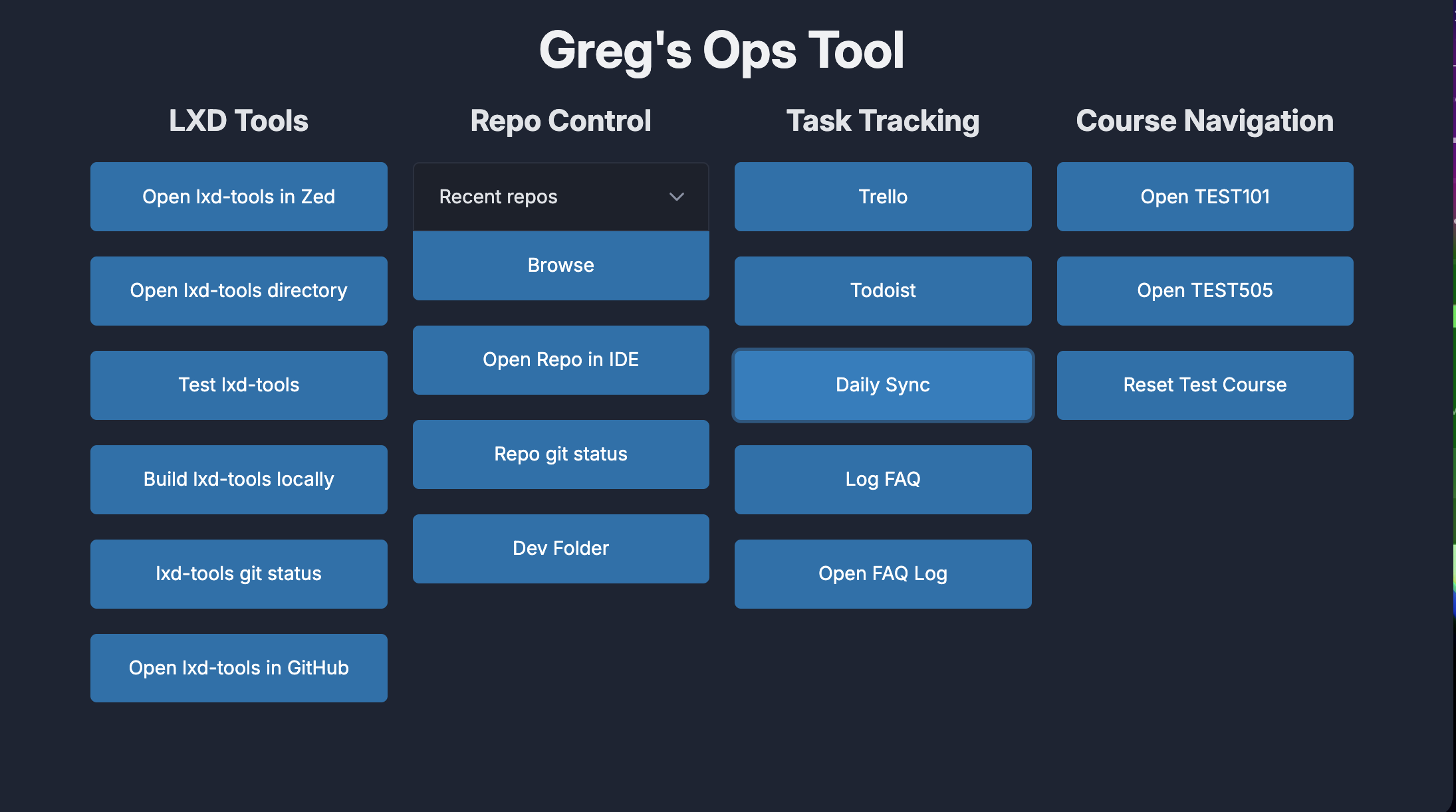
In a recent post, I mentioned an ops tool I built. The intention behind this tool was to create a dashboard of buttons to run repeatable processes in my day-to-day work. It was a new kind of project for me, as I'd never worked on something designed to be a standalone app; most of the stuff I create with a GUI runs in a browser. Because of that experience, I knew I wanted something that would turn web technologies into a desktop application. I originally started working on the project in Tauri, the shiniest of these tools, but once I recognized the need to move some of my system command logic into Rust, I decided it was a little too heavy a lift for an ops tool. I made the transition to building this in Electron, taking on the increased package size as a trade-off for the ability to work in a language I already knew and could ship quicker. The tool is broken down into four columns: LXD Tools(the web extension I do most of my work on at my job), Repo Control, Task Tracking, and Course Navigation. There's overlap between LXD Tools and Repo Control, like opening in my IDE of choice(currently Zed) and running git status on the repo. Most of these buttons are relying on system commands to do what they are doing. In Task Tracking, I have buttons to open my team's Trello board and my personal Todoist, then I have Daily Sync and Log FAQ. In Course Navigation, I have buttons to open a few of my commonly used test courses, and a button to open a Test Course reset utility(which was the inspiration for the test course reset tool I talked about here.) My three favorite features of this are the Daily Sync, Log FAQ, and Reset Test Course buttons. Since I have already talked about the standalone version of test course reset, I'm going to focus on the other two buttons here. The Daily Sync button is designed to make it easier for me to compile a message to our team's group chat in Teams every morning, outlining what got done yesterday and what I plan to do today. This button calls Todoist's API for tasks from my Work project, one time for things that were completed on the last workday (so Monday it looks at Friday) and what is scheduled for today. It then combines the titles of those todo items into two comma-separated lists and pops up a text editor where I have the option to adjust the phrasing in a way that makes sense to people who don't have the same context of the task that I do. Once I've done that, I can hit the "Copy to Clipboard" button and then paste it into a Teams message. This works really well because it saves me the time of having to go to Todoist manually every day and jog my memory on what milestones I hit. The Log FAQ button was built out of dual desires: to correlate questions others come to me for, and to decrease instances of context switching for me. Being at my current job for 3 years in roles as Learning Technology Support and now in a Solution Developer context has given me a spot on our team as someone with a lot of institutional knowledge regarding the technology we use in our courses. As such, people will often reach out with questions regarding Canvas, an LTI integration, or something our extension does. While I never mind answering these questions, since taking on a coding role, those questions can cause some context switching that slows me down. In an effort to address that and increase the bus factor among our team, I've begun logging when I get those questions in a JSON file. I hope, in due time, patterns will emerge about what questions are getting asked, and that can be used to make some form of internal FAQ sheet that will allow people to bypass me and go to that page to answer questions, also serving me in reducing my context-switching time. Logistically, I'm most proud of how this tool saves the information. Once you fill out the form and submit, it adds an entry to a JSON file that lives in Google Drive on the computer. That enables the JSON file to stay synced across multiple computers, without any effort. Working with Electron did pose a few new concepts that I had to learn. I had no experience routing things through preload files or using context bridges; the way Electron needed my buttons bound was not something I had experienced. Those roadblocks aside, it was the right choice to go with Electron for this project, as sticking with Tauri would've meant spending a lot more time learning, which would've been antithetical to this particular project's aims of saving me a little bit of time in my everyday work. If you've looked at the image for this post, you'll notice that it's pretty basic in its styling. That's something I keep in the back of my head as something I would like to address down the line. However, as it stands, this is just a tool for me, and I've really been fine with function over form.